
Gosset connector for Claude
Use Gosset in Claude to research drugs, clinical trials, companies, patents and deals. Add it from Claude's directory and connect your Gosset account.

Claude lists Gosset as mcp.gosset.ai, published by Gosset, Inc. The directory entry configures the MCP connection for you.
Before you start
Sign in to Claude and have your Gosset account ready. Need Gosset access? Request it here.
In a managed Claude workspace, your organization may need to enable the connector first. See Team and Enterprise setup.
1. Find Gosset
Open Claude's directory and search for Gosset. Choose mcp.gosset.ai, with the purple G logo and Gosset, Inc. as its developer.
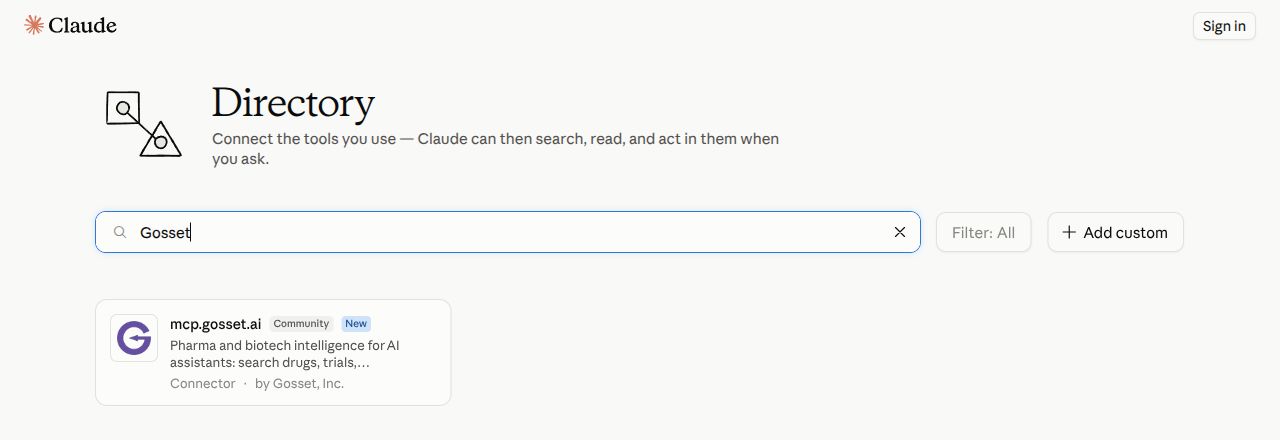
You can also reach the directory through Customize → Connectors in Claude. Look for the Discover or browse option in your interface.
2. Connect your Gosset account
Open the listing. If you are signed out, select Sign in to add and return after signing in.
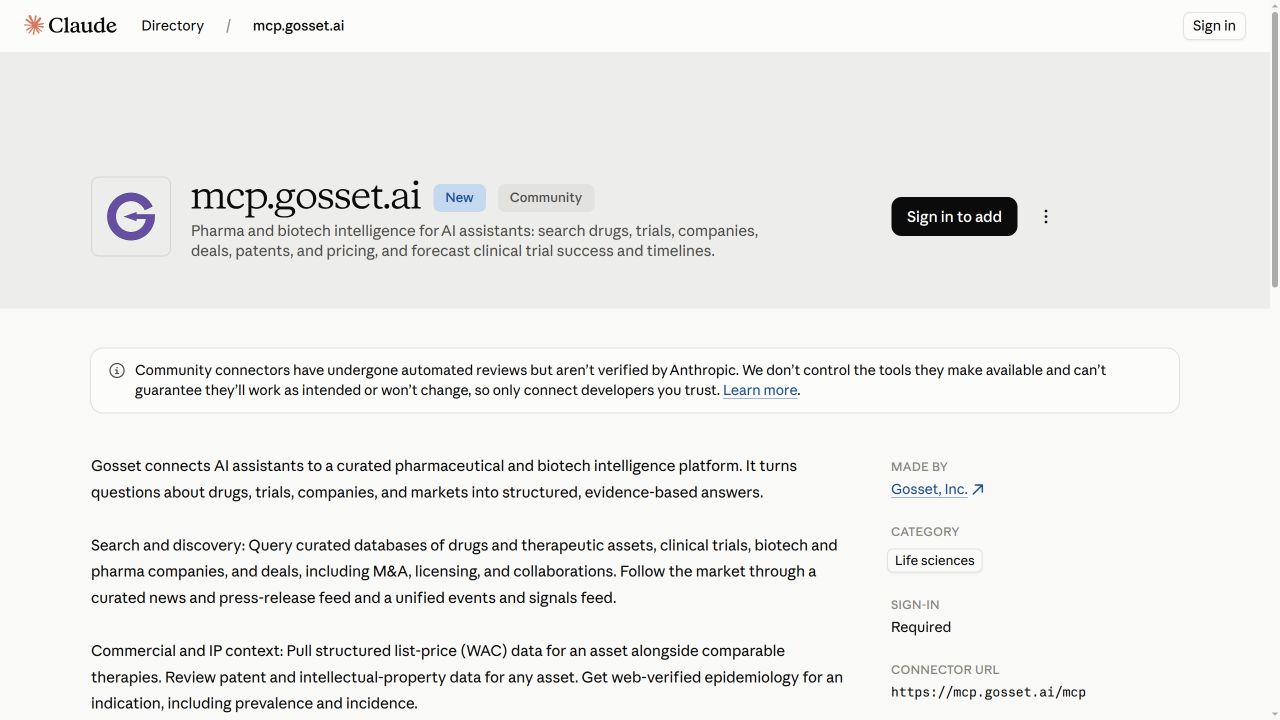
Select Connect and follow the Gosset sign-in and authorization prompts. If you already added Gosset and see Re-authorize, use that to refresh the existing connection. Return to Claude and check that the listing shows Connected.
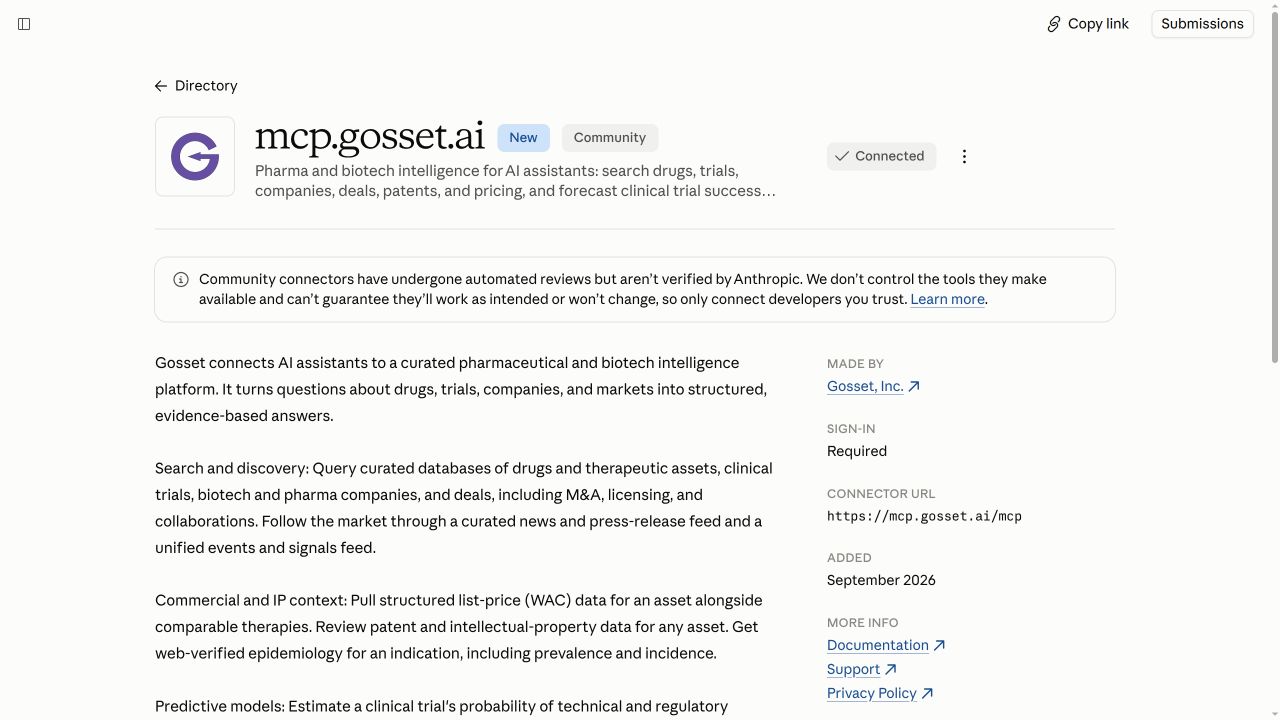
3. Ask a research question
Start a new chat. Open + → Connectors and enable Gosset if needed, then ask Claude to use it:
Use Gosset to map the TL1A competitive landscape.
Include each asset's company, modality, development phase
and supporting trial references.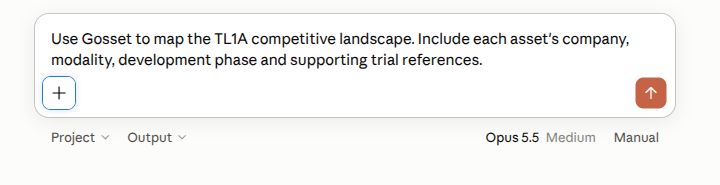
The example above is ready to send. Submit it to start the research.
Then follow up:
Which of those assets are preclinical, and what
experimental evidence is available for each?
Look for Gosset tool activity and supporting sources in the answer. See more research examples.
Team and Enterprise setup
An organization Owner or Primary Owner can enable Gosset under Organization settings → Connectors. Find the directory entry and add it to the team. Members can then connect using their organization's authentication setup; enabling the connector and authorizing access are separate steps.
See Anthropic's connector setup guide for current organization controls.
Troubleshooting
| What you see | What to do |
|---|---|
| No result named “Gosset” | Search for Gosset and choose mcp.gosset.ai, or open the direct listing. |
| The listing asks you to sign in | Sign in to Claude first, then complete the separate Gosset connection. |
| Your workspace blocks the connector | Ask an organization owner to enable it for your team. |
| Claude answers without using Gosset | Check + → Connectors and explicitly ask Claude to use Gosset. |
| The Gosset connection needs authentication | Open Customize → Connectors and complete the sign-in prompt for Gosset. |
Manual MCP setup (advanced)
For a custom configuration, use the server details below. The directory route above handles these details for normal setup.
Configure a custom Gosset MCP connection
In Customize → Connectors, choose Add → Custom → Web and enter:
| Field | Value |
|---|---|
| Name | Gosset |
| Remote MCP server URL | https://mcp.gosset.ai/mcp |
Continue to the detected authentication settings. Gosset uses OAuth; choose Sign in now or Sign in when needed, then follow the prompts to add the connector and sign in to Gosset. Older clients that require SSE can use https://mcp.gosset.ai/sse.
For current custom-connection controls, see Anthropic's connector guide.
References
Screenshots captured on claude.ai in October 2026. Controls may differ by account and workspace.