
Gosset plugin for ChatGPT
Use Gosset in ChatGPT to research drugs, clinical trials, companies, patents and deals. Install the Gosset plugin from the public directory and connect your Gosset account.

The plugin connects ChatGPT to Gosset through MCP. Installing the published plugin sets up that connection; you do not need to enter a server URL or enable Developer mode.
Before you start
Sign in to ChatGPT and have your Gosset account ready. If you need Gosset access, request it here.
Using a managed ChatGPT workspace? Your administrator may need to allow Gosset. See workspace setup.
1. Find Gosset
Open Plugins in ChatGPT's sidebar and search for Gosset, or use the direct link above. Choose Gosset, with the purple G logo and the description Pharma pipeline intelligence.
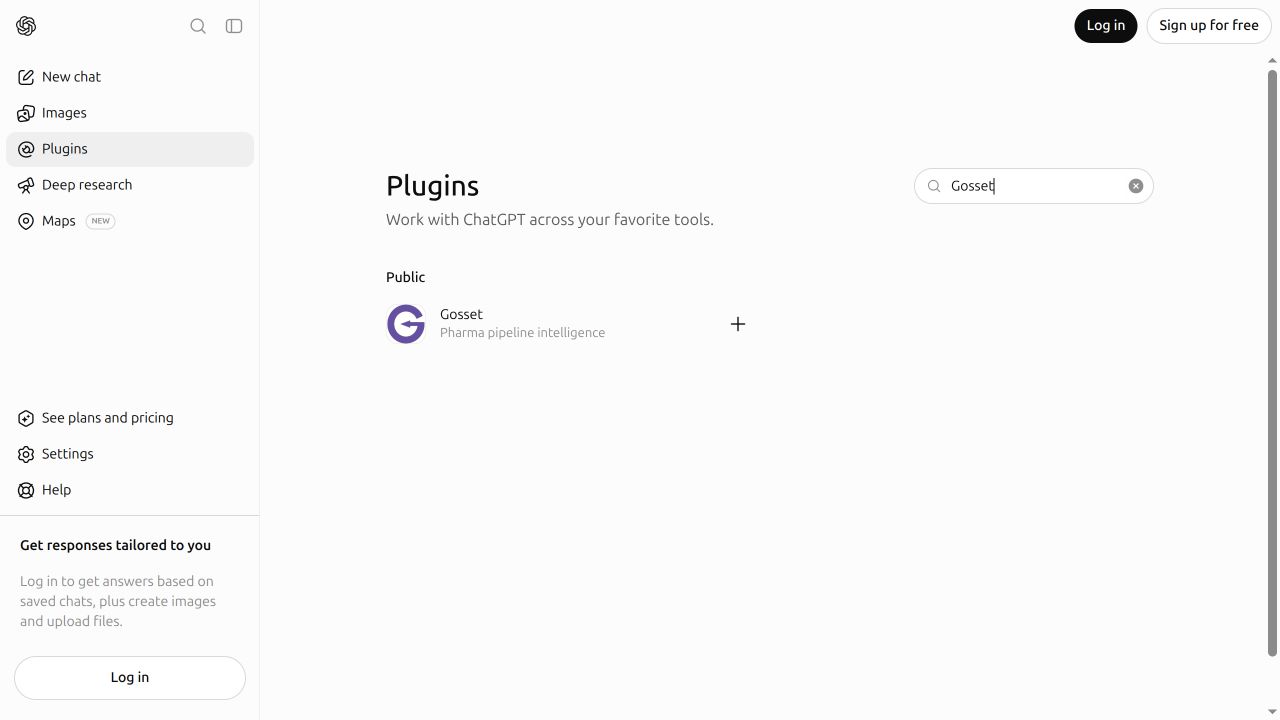
2. Install and connect
Open the Gosset listing and select Install plugin. You can also use the + button on its directory card. If ChatGPT asks you to log in, sign in and return to the listing.
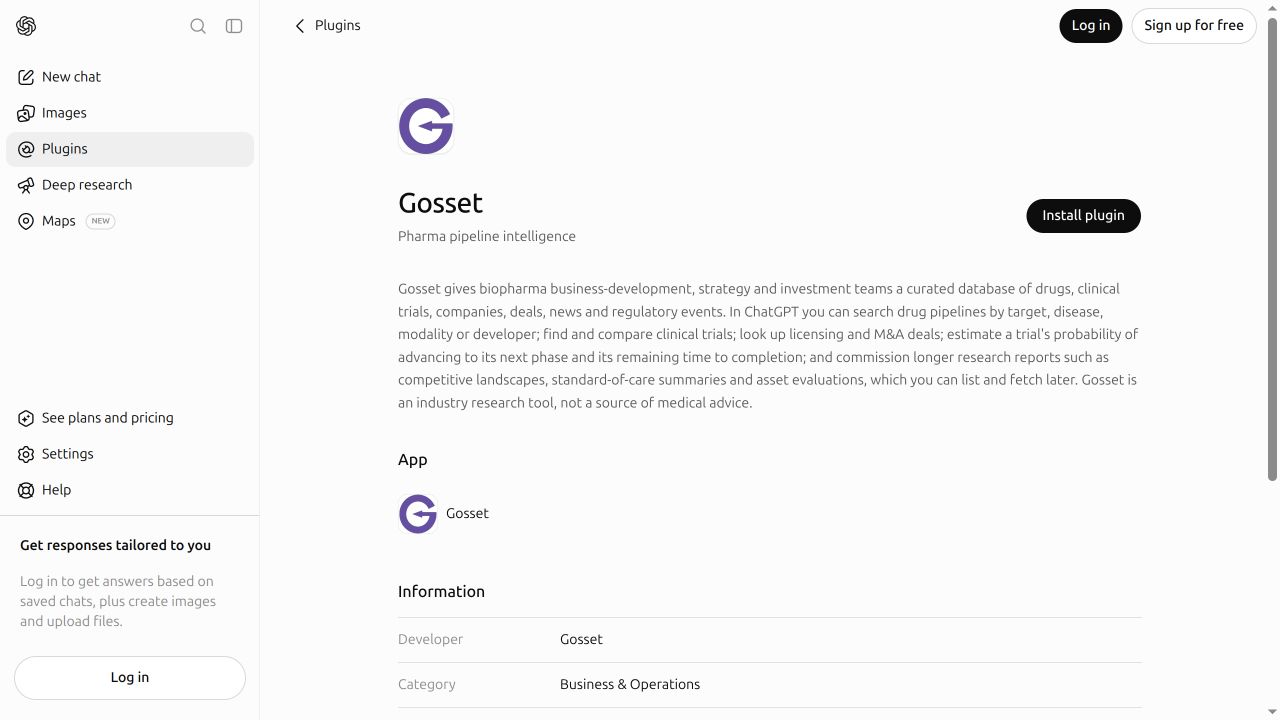
Follow the connection prompt, sign in to Gosset if asked, and review the requested permissions before authorizing the connection. Return to ChatGPT when setup finishes. If authentication is requested the first time you use Gosset instead, complete it then.
Installing the plugin and connecting your Gosset account are separate steps. If you already have a Gosset connection, it may appear under Connected accounts automatically. Otherwise, complete the connection prompt.
After installation, the button changes to Try in chat:
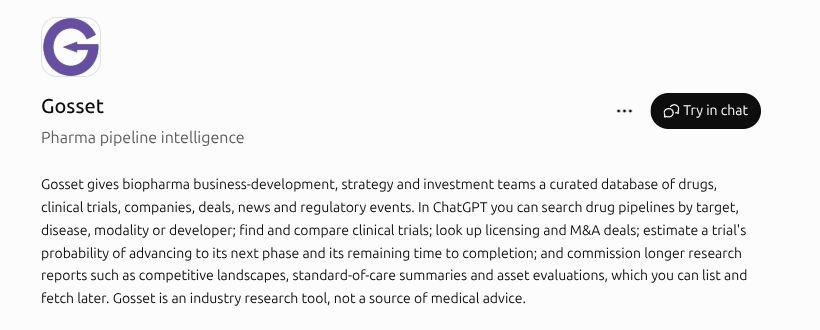
3. Ask a research question
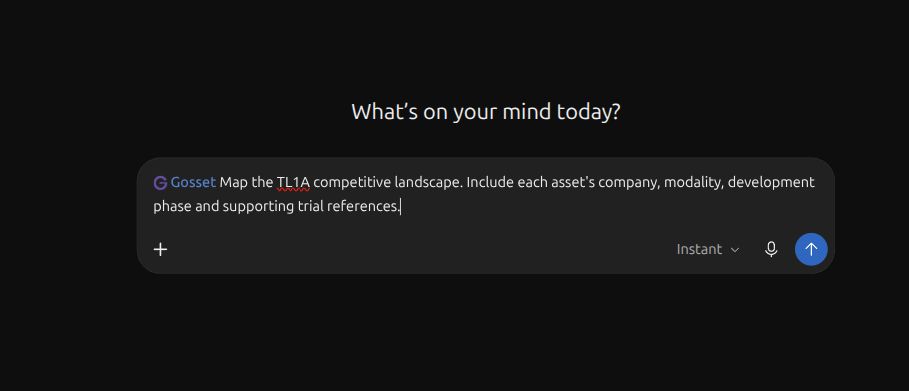
Select Try in chat on the plugin page to open a new chat with Gosset selected. Alternatively, start a new chat, type @, and select Gosset. Enter your question:
Use Gosset to map the TL1A competitive landscape. Include each asset's
company, modality, development phase and supporting trial references.
The Gosset name and icon appear in the composer before you send:
Then refine the results:
Which of those assets are preclinical, and what experimental evidence
is available for each?
Look for Gosset tool activity and source links in the answer to confirm that ChatGPT used the connection. See more research examples.
Troubleshooting
| What you see | What to do |
|---|---|
| Gosset is unavailable or requires admin approval | Check that you are in the intended ChatGPT workspace, then ask your administrator to enable it. See workspace setup. |
| Gosset is installed but asks to connect | Finish the Gosset sign-in and authorization flow, then start a new chat. |
| ChatGPT answers without using Gosset | Select Gosset with @ and explicitly ask it to use Gosset. |
| An existing connection asks you to sign in again | Reconnect from the plugin's connection settings using your Gosset account. |
If your interface still labels the directory Apps, look for Gosset there or open the direct listing.
Manual MCP setup (advanced)
Use this only when you specifically need a custom MCP connection. For normal ChatGPT use, install the public plugin above.
Configure a custom Gosset MCP connection
In ChatGPT, open Settings → Security and login → Developer mode. Availability depends on your account and workspace policy.
Open Plugins and use the option to add an MCP server.
Enter the connection details:
Field Value Name GossetMCP server URL https://mcp.gosset.ai/mcpAuthentication OAuth Complete the Gosset sign-in and authorization prompts, then review the discovered tools.
Start a new chat and select your Gosset connection from the tools menu.
The /mcp endpoint is for Streamable HTTP. Older clients that specifically require SSE use https://mcp.gosset.ai/sse.
For current custom-connection controls, see OpenAI's MCP setup guide.
References
Screenshots captured on chatgpt.com in October 2026. Account and workspace controls may differ.